Loading history…
Windows Package Manager
This is r2, saved by jack. Full history
|
Windows Package Manager
winget
| |
 i i
| |
|
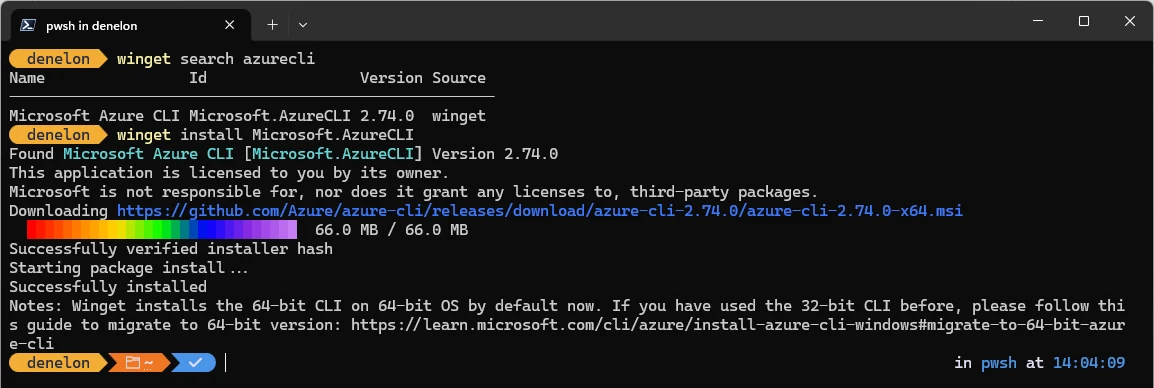
Searching for and installing a package from a terminal window
Screenshot from Microsoft's own documentation
| |
| Developer | Microsoft |
|---|---|
| Announced | 2020.05.19 (preview) |
| First stable release | Version 1.0, May 2021 |
| Latest stable release | 1.28.240 (2026.04.17) |
| Client name | winget
|
| Written in | C++, C#, PowerShell |
| Operating system | Windows 10 version 1809 and later, Windows 11, Windows Server 2025
|
| Delivered in | App Installer |
| License | MIT License |
| Source code | github.com/microsoft/winget-cli |
| Package repository | github.com/microsoft/winget-pkgs |
| Documentation | learn.microsoft.com |
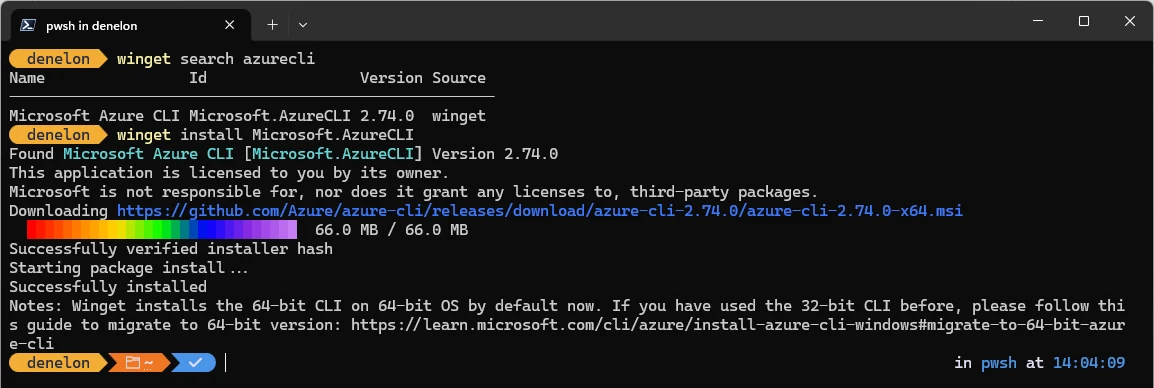
Windows Package Manager is a package manager for Microsoft Windows, built and maintained by Microsoft. Its command-line client is named winget, and most people use that name for the whole system. One command replaces the usual routine of opening a browser, hunting for a download page, and clicking through an installer. Typing winget install PowerToys finds the application, downloads its installer, and runs it silently.
The tool ships as part of App Installer, a system component that Windows updates through the Microsoft Store. It runs on Windows 10 version 1809 and later, on Windows 11, and on Windows Server 2025. Two package sources are configured by default: a community repository of application descriptions hosted on GitHub, and the Microsoft Store.
Microsoft announced a preview at its Build conference in May 2020 and released version 1.0 a year later. The client is open source under the MIT License, and the source code lives in a public GitHub repository. The preview announcement was quickly overshadowed by a dispute with the author of AppGet, an existing Windows package manager that had influenced the design.
1 Background✎
A package manager keeps a catalog of software and installs items from it on request. Linux distributions have shipped one for decades, and macOS developers rely on the third-party Homebrew project. Windows had no equivalent built into the system, so installing a set of tools on a fresh machine meant visiting a dozen websites by hand.
Several projects filled the gap before Microsoft did. Chocolatey built a large catalog and a business around enterprise support, Scoop installed software without administrator prompts, Ninite watched for updates to the applications it had installed. OneGet worked through PowerShell, while AppGet and Npackd took approaches of their own.
Microsoft looked at those projects and decided to build a new one anyway, giving two reasons at launch. It wanted a repository whose contents it could vouch for, checking every submission with SmartScreen, static analysis, and hash verification. It also wanted a small native client with few dependencies, something it could ship as part of Windows itself.
2 History✎
2.1 Preview and the AppGet dispute✎
Demitrius Nelon announced the preview on 2020.05.19, during Build 2020, and Microsoft published the client's source code the same day. That first build could install, search, and show packages, and it included commands for generating and checking manifest files. Windows Insiders received it automatically through App Installer, and anyone else could clone the repository and build the client themselves.
Within days the announcement drew a public complaint from Keivan Beigi, the author of AppGet, who said Microsoft had approached him in late 2019 about a job and a possible acquisition. Talks went quiet for months, and he says he received about a day's warning before winget was unveiled. Beigi argued that winget's mechanics, terminology, manifest format, and repository folder layout all came from his project, which Microsoft's announcement had mentioned only in a passing list.
Andrew Clinick, a group program manager at Microsoft, responded on 2020.05.30 in a post titled "winget install learning." He wrote plainly that the company had failed to live up to its own goal, specifically with Beigi and AppGet. The post named four AppGet qualities that had shaped winget: no scripts during installation, rich manifests stored in GitHub, support for every kind of Windows installer, and smooth updates for anything in the repository. Microsoft still thanks Beigi by name in the project's README file, crediting his work with shaping the initial direction of the effort.
2.2 Growth✎
The catalog passed a thousand packages within six months, and a September 2020 update added the Microsoft Store as a second source and brought tab completion to PowerShell. A preview the following spring added bulk import and support for Group Policy. Version 1.0 arrived at Build 2021, roughly a year after the first preview.
Later releases filled out the feature list rather than changing its shape. Commands were added for pinning a package to a version, downloading an installer without running it, repairing a broken installation, and applying a configuration file. A PowerShell module, a COM programming interface, and a server for AI agent tools followed. In 2026 the version number jumped from 1.12 to 1.28 so that the client would match the App Installer package it ships inside.
| Release | Date | Notable additions |
|---|---|---|
| Preview | 2020.05 | Announced at Build 2020; install, search, show, hash, validate |
| 0.2 | 2020.09 | Microsoft Store as a second source; tab completion |
| 0.3 | 2021.04 | Bulk import; Group Policy support |
| 1.0 | 2021.05 | First stable release, announced at Build 2021 |
| 1.28 | 2026.04 | Version renumbered to match App Installer; source editing |
3 How it works✎
3.1 Sources✎
A source is a catalog that the client can search, and the default one, named winget, is the community repository on GitHub. A second source, named msstore, covers free Microsoft Store applications rated for all ages. Organizations can host a private catalog behind a REST interface, and administrators can restrict or replace the configured sources through Group Policy.
3.2 Manifests and the community repository✎
Each package in the community repository is described by a manifest, a short text file in YAML format. The manifest records the publisher, the version, the download address of the installer, and a SHA-256 hash of that file. It does not contain a script, because the client refuses to run one.
Manifests live in a fixed folder structure inside the winget-pkgs repository. The path runs from a first-letter folder to the publisher, the application, and finally the version, and the identifiers inside the manifest must match that path. Anyone can add a package to the catalog by opening a pull request against the repository.
Submissions then pass through an automated review that checks the manifest against a schema, confirms that the installer hash matches, and tests the installer in a clean environment. Installation must succeed silently for both administrators and ordinary users, and uninstallation must leave nothing behind. Several antivirus engines scan the result, and download addresses must use HTTPS and point directly at the publisher's own servers rather than a redirector.
Labels on the pull request report the outcome, a moderator reviews the package before it joins the public catalog, and Microsoft reserves the right to refuse any submission. Software that legitimately resembles unwanted programs, such as certain debugging tools, is sometimes rejected because the scanners cannot clear it.
3.3 Installer types✎
The client is not tied to one installation technology, and it drives EXE installers built with Inno Setup, Nullsoft, or a plain silent switch, along with MSI, WiX, and Burn packages. It also handles APPX and MSIX packages, ZIP archives, portable executables that need no installation at all, and font files.
4 Commands✎
Running winget with no arguments lists the available commands, and winget --help gives fuller guidance for any one of them. The commands used most often in day-to-day work are shown below.
| Command | What it does |
|---|---|
search
|
Finds a package by name, tag, or short nickname |
show
|
Prints details about a package without installing it |
install
|
Downloads and runs the installer for a package |
list
|
Shows what is installed and which items have updates |
upgrade
|
Updates one package, or every package with --all
|
uninstall
|
Removes an installed package |
download
|
Saves an installer without running it |
pin
|
Holds a package at its current version |
export
|
Writes the list of installed packages to a file |
import
|
Installs every package named in such a file |
configure
|
Brings the machine to the state a configuration file describes |
source
|
Adds, edits, removes, or refreshes package sources |
settings
|
Opens the client's own settings file for editing |
The pair of export and import covers the common case of rebuilding a machine. The export file lists installed packages, and running the import on a new computer reinstalls all of them in one pass.
5 Configuration files✎
A WinGet Configuration file goes further than a package list, using YAML to describe the state a machine should end up in. That state covers applications, developer tools, and Windows settings alike. Running winget configure against the file downloads whatever is needed and applies it through PowerShell Desired State Configuration.
The file is declarative rather than a sequence of steps, so it states the result instead of the route to it. Microsoft aims the feature at teams onboarding new developers, where a single file can replace a page of setup instructions. The same file produces the same environment on every machine that runs it.
6 Availability✎
App Installer carries the client on desktop editions of Windows and updates it through the Microsoft Store, while Windows Server 2025 receives it through Windows Update. The command is unavailable until someone has signed in to the machine once, because registration happens in the background after first sign-in. Windows Sandbox includes neither App Installer nor the Store, so the client has to be added deliberately there.
Developers who want unreleased features can install a preview build from the project's releases page, or join the Canary or Dev channels of the Windows Insider Program. The Microsoft.WinGet.Client module on the PowerShell Gallery offers the same operations as PowerShell commands, and a COM interface lets other programs drive the client directly.
7 See also✎
Content available under CC BY-SA 4.0